Complete Workflow Editor Tour
Understand every major editor region
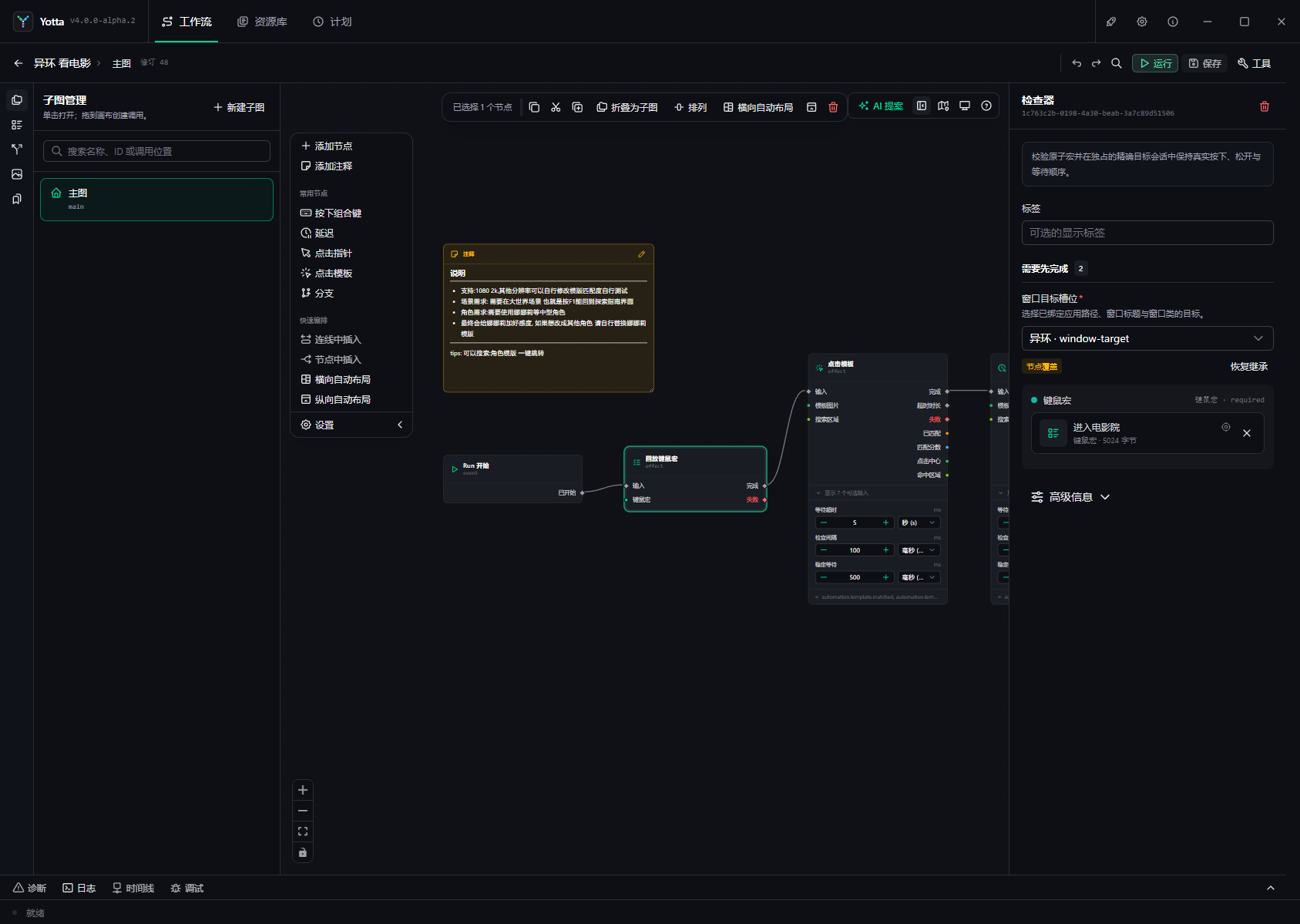
1. Workflow bar
The top bar contains Back, workflow identity and revision, Undo/Redo, node location search, Run or Stop, Save, and Tools. Unsaved marks an in-memory draft. A revision conflict never silently overwrites another update.
Tools opens lower-frequency commands such as Check, Debug, workflow state, Timeline, editor settings, and Reload.
2. Workspace rail and management panel
The left rail switches among Subgraphs, Node Catalog, Run State, Workflow Resources, and Snippets. The adjacent panel manages the selected kind. It chooses which object to manage; the right inspector edits the selected object's properties.
3. Canvas
The canvas contains nodes, subgraph calls, annotations, and connections. Hold Space or the middle mouse button to pan. Use the wheel and lower-left controls to zoom or fit the graph.
Click to select. Drag on empty space for marquee selection. Shift adds, Ctrl toggles, Escape clears, and Delete removes selected objects. Multi-selection reveals actions for copy, cut, delete, layout, or collapse to subgraph.
4. Ports and connections
Signal ports define execution order. Data ports pass typed values and do not start nodes by themselves. A node reads connected or fixed data when its execution signal arrives.
An unconnected normal completion port ends that path successfully. An unconnected error port makes the Run fail. Add explicit conversion nodes when types differ.
Selected signal edges can receive reroute points. Reroutes change drawing only, not execution.
5. Canvas assistance
Add Node opens the full catalog. Quick Add searches by name and can insert a compatible node into a selected signal edge. Horizontal/Vertical Layout reorganizes positions without changing behavior.
The monitor icon selects the workflow Default Automation Target:
- nodes without an explicit target inherit it;
- an explicit node target overrides it;
- Restore Inheritance removes the override;
- clearing the default makes inherited nodes require configuration again.
6. Inspector
The inspector usually shows node description, custom label, required inputs, common inputs, advanced configuration, outputs, capabilities, targets, and observed statuses. Required fields must contain a fixed value or a compatible connection.
When a data input is connected, the upstream value is authoritative. Remove the connection before returning to a fixed inspector value.
7. Subgraphs, state, resources, and snippets
Subgraph management creates definitions and locates call sites. Each Run initializes an independent copy of declared typed state. Workflow resources travel with exported bundles. A snippet stores one node's reusable configuration and bindings.
8. Workflow settings
Workflow Settings edits name, description, category, and tags. These fields share the Source revision with the graph; invalid graph content can block metadata saving until repaired.
9. Runtime workbench
- Diagnostics lists draft compilation issues and can locate nodes.
- Logs provide supporting process information.
- Timeline is the authoritative ordered Run evidence.
- Debug exposes breakpoints, current inputs, state, produced values, and step controls.
The workbench can collapse, expand, or maximize. Start with the first failed Timeline entry.
10. Recommended editing loop
Add a small section, connect it, save, check, run on a safe target, inspect Timeline, then continue. Do not build dozens of untested nodes before the first Run.